Add a sub-transformation with step “transformation executor”

You can bundle a couple of steps as a transformation and call those steps in another transformation.

My scenario: determine publication date

I often use the Crossref Rest API to get information about publications. Depending on the publisher there are different kind of dates associated with a DOI and the dates can have different resolutions. Sometimes just a year or a year and a month.

Get publications dates from different DOIs (using REST and JSON) – Simple_Rest_Query_Crossref.ktr

In order to get always a specific publication date with the resolution YYYY.mm.dd I use a couple of steps and logic to determine the “relevant” publication date out from those different date fields.

Adding a couple of steps to determine “publication_date”

To reuse those steps in different transformations without copying each time all these steps I can now save those steps as own transformation. Let’s add a “Get rows from result” and “Copy rows to result” at the beginning and and end this sub-transformation.

subtransformation – Publication_Date_Sub.ktr

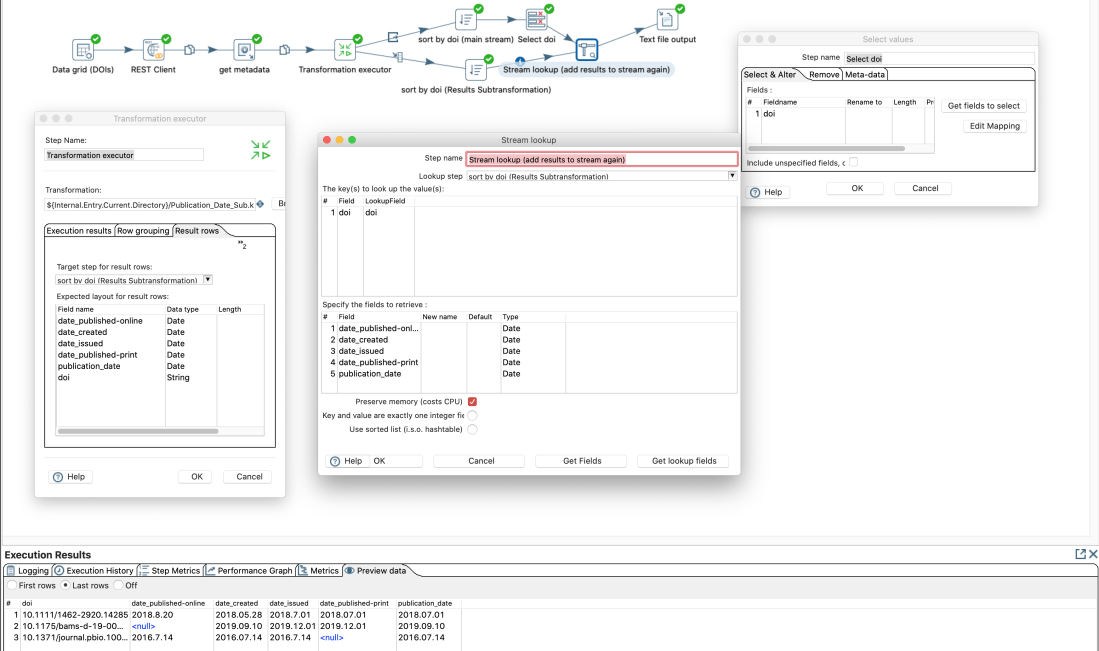
Then we can add a “Transformation executor” step in the main transformation. In this step we add the expected “fields” of the sub-transformation in the tab “Results row”
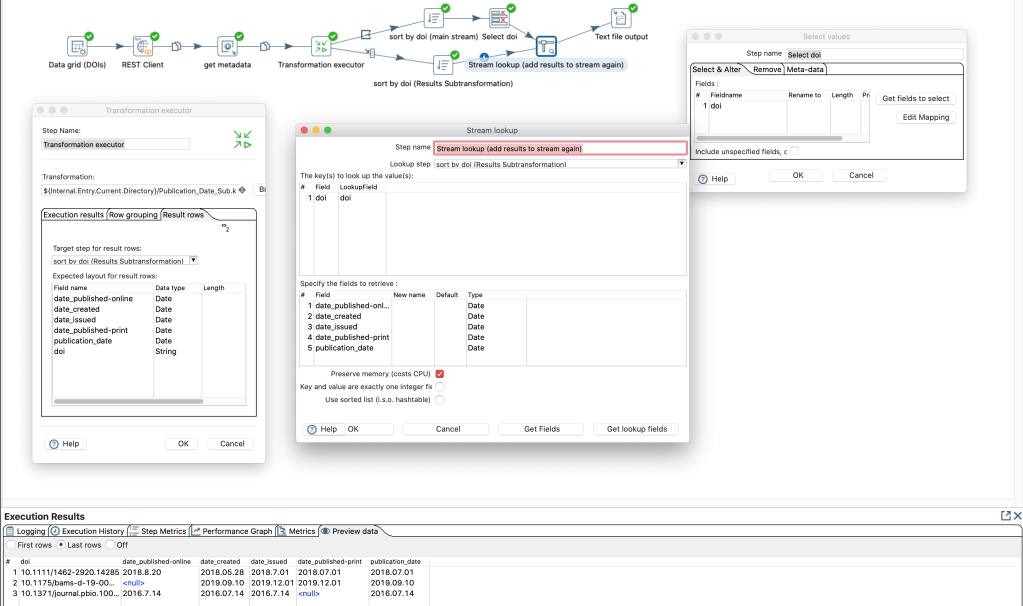
Adding a “transformation executor”-Step in the main transformation – Publication_Date_Main.ktr

As output of a “transformation executor” step there are several options available:

Output-Options of “transformation executor”-Step

There seems to be no option to get the results and pass through the input steps data for the same rows. Probably since the output of the sub-transformation can have more more or less rows than the input. Yet we can create a work-around by going on the the input data and add the results of the sub-transformation with a common (presorted) identifier. At the end we have the original data and the result of the sub-transformation combined.

Execute a shell script

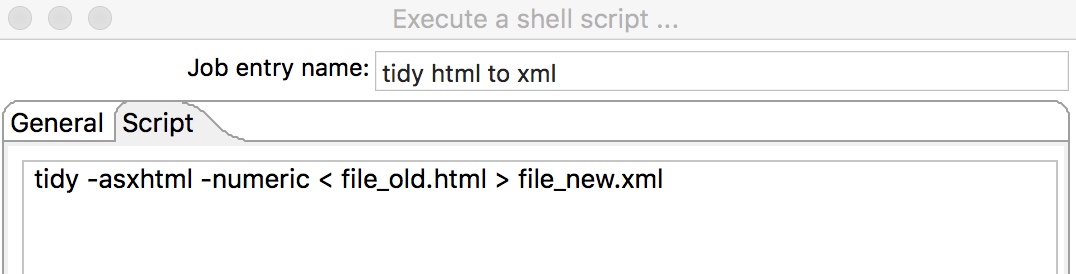
To trigger a shell script or a terminal command after a transformation, you have to create a job (it’s not available in a transformation). In the following scenario I wanted to transform a HTML-File to XML using tidy.

So I define a job, where the file is created and use the step “Execute a shell script…”

then enter the tidy command:

tidy -asxhtml -numeric < file_old.html > file_new.xml

in the next tab “Script”:

Simple terminal command

Provided tidy hasn’t failed, the “file_old.html” has been converted to “file_new.xml” in your job directory.

Create URL for REST-query

When you want to query a REST API but have values that need url-encoding first, you can use a User Defined Java Expression:

Transformation with three steps:
Generate Rows
User Defined Java Expression
REST query
Generate URL to query Crossref REST API (Download: Transformation)

In this particular example it is necessary as PDI would throw the error (“Illegal character in path”) if you query the following URL unmodified from a string:

Concat Strings

There are several possibilities in Pentaho Data Integration to put together several fields:

a) Step: Concat fields

This step is very straightforward if you want to concat fields using the same separator:

Concat Last and First name to a field “person_p3”, with separator “, “

b) Step: Formula

Similar to Excel you can create a new string using your fields and ad hoc defined strings in the Formula step:

c) Step: User Defined Java Expression

Similarity of person names

If you want to compare strings using fuzzy logic, you either can use the step “Fuzzy match” or calculate the similarity within the “Calculator” step.

Calculator Step: Testing various algorithms

To comparing person names I found the “JaroWinkler similitude” algorithm with a score > 0.75 providing acceptable results:

Results after calculation of similarities (sorted by Jaro Winkler)

Note: In this example “Grams, C. M” is obviously similar to “Grams, Christian Michael Warnfried”. With the Levenshtein distance, this similarity would not have been found.

In order to filter out false positives, you can run additionally the similarity check also on just the last name only.

JSON-Input

Pentaho Data Integration (PDI) offers the input step “JSON-Input” to read out data from a JSON file or stream. Often I use this step after a REST-API-Query, so I would have the JSON-Input as a field from a previous step.

In order to test the field-extraction, it’s helpful to save some local samples of the possible responses. In the tab “File” you first can do your tests with the local file and switch later to “Source is from a previous step”.

Since recently Pentaho offers an “internal helper” to select the fields. However it unfortunately does not to work for most of my use-cases. Instead I found http://jsonpathfinder.com/ very useful.

Get JSON Path to the data you want to extract via http://jsonpathfinder.com/

Then add the fields with the corresponding path in PDI:

Extracting various fields from the JSON response of the Crossref REST API (e.g. http://api.crossref.org/works/10.1002/2016gl068428)